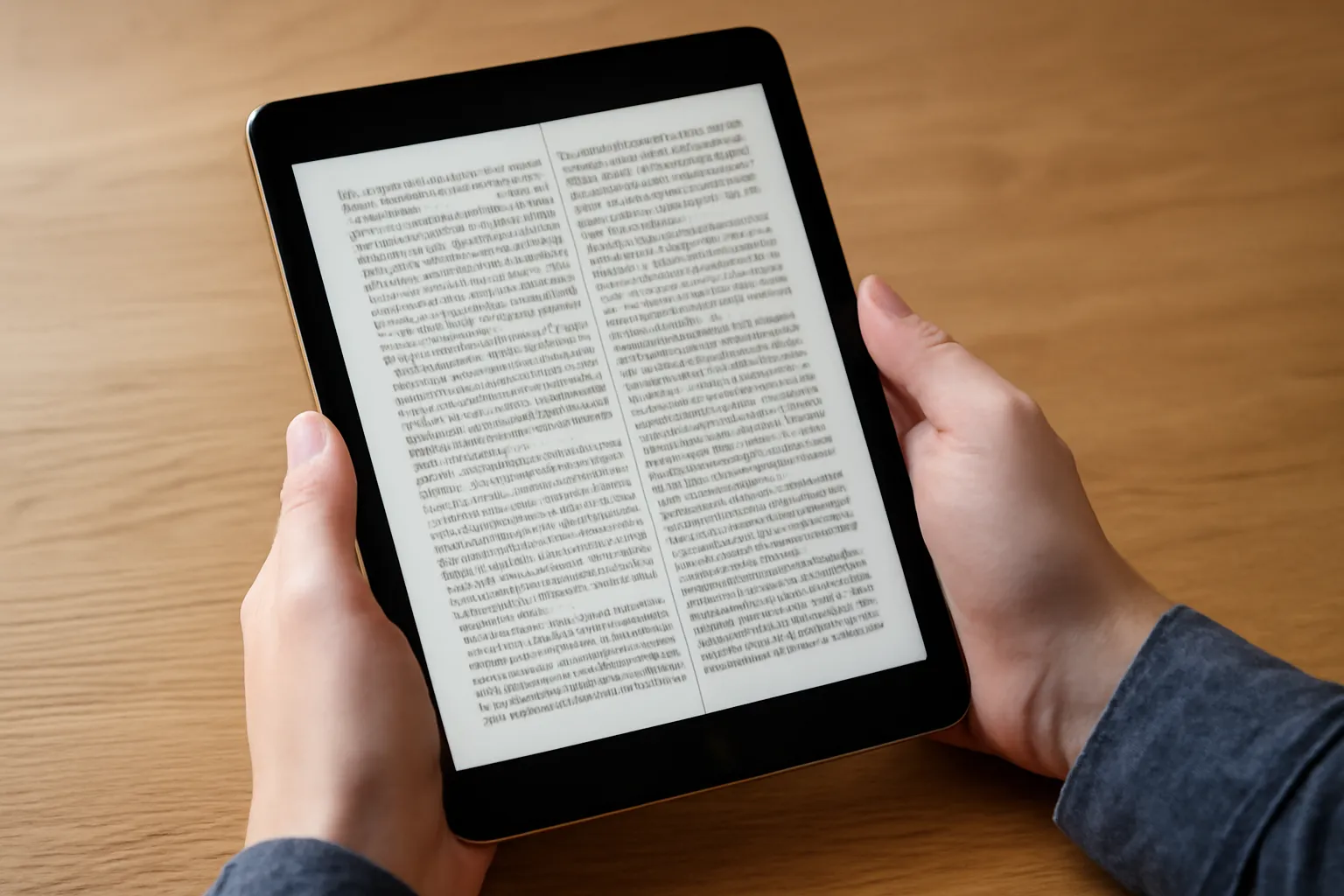
Introduction: Why a Tablet Bible Makes Reading the Scriptures More Accessible
In recent years, the combination of portable tablets and robust Bible apps has transformed how people
read and study the Bible. A tablet Bible experience offers the convenience of a
lightweight device with all the features of a traditional study Bible, plus the advantages of
modern software: instant searches, cross-referencing, audio narration, and a vast library of
translations and resources. Whether you prefer an electronic Bible on a tablet,
a tablet-based Bible app, or a bible app on a tablet with advanced study tools, you have the flexibility to tailor the experience to your context—devotions, sermon prep, group study, or quiet personal reading.
This article acts as a comprehensive guide to choosing the right hardware, selecting the best
applications, and adopting practical tips to maximize your tablet Bible reading time. We’ll cover popular apps for an iPad, a variety of Android tablets, and even cross‑platform options that keep your notes and highlights in sync across devices. If you are new to the concept of a digital Bible on a tablet, or you’re upgrading your current setup, you’ll find actionable advice below.
Choosing the right device for Bible reading on a tablet
The hardware you choose has a real impact on readability, comfort, and the longevity of your tablet Bible journey. Here are the key considerations to guide your decision.
Screen size and type — For long reading sessions, a larger screen (around 10 to 12 inches)
reduces eye strain and makes multi‑column layouts, notes, and reference materials easier to manage.
Opt for a high-resolution display with good contrast. If you read in dark environments, an OLED screen
with deep blacks can be pleasing, but LCD panels with strong brightness and decent color accuracy work well too.
Resolution and pixel density — A higher PPI (pixels per inch) yields crisper text, which matters
for small font sizes and dense commentaries. Look for 224 PPI or higher as a practical baseline on most
modern tablets.
Battery life — Tablet Bible sessions often involve long reading blocks and offline downloads.
Devices with efficient processors and longer battery life reduce interruptions, especially when traveling or
studying in environments without easy charging.
Storage capacity — A robust Bible library, offline resources, commentary packs, and audio
narration can take up substantial space. Consider 64 GB or more, with expandable storage if you anticipate
large offline caches.
Operating system compatibility — The best tablet Bible experience comes from apps that are
regularly updated on your platform. iPadOS and Android each have ecosystems with distinctive apps and
features; cross‑platform apps can help you stay synchronized.
Durability and portability — If you study on the go, a protective case, comfortable grip, and a
light form factor help sustain your reading habit over months and years.
In practice, most readers find that an iPad or high‑end Android tablet offers a balanced
set of features, including excellent screen quality, broad app support, and reliable long‑term updates.
Best apps for tablet Bible reading: what to install on your tablet
Across the tablet Bible” ecosystem, several apps stand out for their combination of
features, ease of use, and breadth of translations. Here, we cover a selection of tablet Bible
apps that are especially well-suited for readers who want rich study tools, offline access, and cross‑device
synchronization.
YouVersion Bible App — A widely adopted choice for reading, plans, and community features.
Key capabilities include:
Extensive translation library with audio options
Reading plans for daily devotionals and long‑term study
Offline downloads for selected translations
Cross‑device sync of highlights, notes, and progress
Olive Tree Bible App — Known for its robust note‑taking, resource management, and
strong rendering of study materials.
Strong highlighting, notes, and tagging system
Open architecture for integrated libraries and resources
Excellent modular purchases and offline access
Split‑screen support for multiple resources
Logos Bible Software — A powerful option for deep Bible study, original languages,
and scholarly resources.
Advanced search across a large library of commentaries and lexicons
Original language tools (Greek/Hebrew) with parsing and morphology
Personalized layout for study workflows and sermon prep
Offline access to Library resources
Bible Gateway App — A reliable streaming and offline reading experience with optional
audio.
Wide translation selection, including popular modern and archaic versions
Daily devotionals and reading plans
Notes, bookmarks, and a clean interface for quick access
Tecarta Bible — Focused on a smooth reading experience and media‑rich study aids.
Beautiful typography and comfortable reading modes
Library of study resources and cross‑references
Strong offline capabilities and performance on tablets
Blue Letter Bible — A practical tool for study with strong lexical and scholarly content.
Original language tools, strong concordances, and lexicons
Each of these tablets Bible apps has a distinctive strength. If you value ease of use and a
broad translation base, YouVersion and Bible Gateway are excellent
starting points. If your goal is in‑depth study, language tools, and scholarly resources, Olive Tree
and Logos are strong contenders. For serious note‑taking and resource management on a tablet Bible experience, consider Tecarta and Blue Letter Bible.
What features to look for in a tablet Bible app
Not all Bible apps on tablets are created equal. When evaluating a tablet Bible solution,
consider the following feature categories to ensure you can read, study, and reflect effectively.
Translations and access — A strong tablet Bible experience includes a broad library of
translations (e.g., NIV, ESV, KJV, NASB, NRSV) and, optionally, audio narration. Offline access to chosen
translations is a major plus for travel or areas with limited internet.
Search and navigation — Quick search, text highlighting, and cross‑references speed
up study sessions. Inline cross‑references and the ability to jump between verses or footnotes save time.
Note taking and annotation — The ability to highlight in multiple colors, create notes,
and organize notes by topic, sermon, or study plan helps you revisit insights later.
Study resources — Commentaries, dictionaries, lexicons, maps, and devotional guides add depth
to a reading plan. Look for modular add‑ons or built‑in libraries that can be downloaded for offline use.
Reading plans and devotionals — Built‑in plans that adapt to your schedule (daily, weekly,
or topic-based) can keep you on track. Some apps offer customized plans based on reading speed or goal.
Offline mode — The ability to download resources and read without an internet connection is
essential for travel, fieldwork, or simply slower connection areas.
Presentation and sharing — If you teach or lead a study group, look for features that enable
easy sharing of notes, slides, or verses to a projector, secondary device, or group chat.
Accessibility — Options such as font customization, night/sepia modes, dyslexic fonts, and
screen‑reader compatibility broaden who can read and study with the app.
Synchronization — Cross‑device synchronization ensures your highlights, notes, and plans stay
in sync across a tablet, phone, or desktop.
A well‑designed tablet Bible workflow helps you read more deeply and retain what you study.
Below are common modes and practical workflows to maximize your time with a digital Bible on a tablet.
Reading mode — Full‑screen verse reading with customizable font, size, line height, and color
themes. Dark mode or night reading reduces eye strain in dim environments.
Study mode — Enable parallel panes to view translations side by side, or display
commentaries adjacent to the text for quick reference during study.
Highlighting and note strategy — Create a color‑coded system (e.g.,
prayer, sermon ideas, language notes). Tag notes by topic (grace, faith, leadership) for later retrieval.
Offline research stack — Preload your preferred translations, lexicons, and commentaries
before a trip. This ensures you can study without a steady internet connection.
Audio‑first sessions — Use narrated Bibles for listening while commuting or exercising,
then switch to reading for deeper engagement. Some apps allow synchronized audio with text highlighting.
Verse mapping and journaling — Link verses to journal entries or topic threads. A few apps
support journaling directly within the study environment, helping you capture insights in one place.
Adopting a few best practices can turn a basic tablet Bible into a powerful learning companion. Here are practical tips for reading the Bible on a tablet with clarity and focus.
Set a consistent space and routine — Designate a dedicated time and place for reading.
Consistency builds habit, and a reliable rhythm improves retention.
Prepare offline resources — Before travel or long commutes, download your preferred
translations, study notes, dictionaries, and devotionals. This reduces friction and ensures continuity.
Adjust display settings — Tailor font size, line spacing, and background color to your comfort.
Higher contrast can aid readability, while larger fonts help slow readers engage more meaningfully with the text.
Use search and cross‑references — Leverage the full power of a tablet Bible by utilizing
search tools to locate verses, terms, or concepts quickly. Cross‑references connect related passages and ideas.
Organize your study with folders or tags — Create topic folders (e.g., salvation, church, prayer)
and tag notes accordingly. This makes retrieval straightforward when you prepare a sermon or study guide.
Incorporate high‑quality commentary sparingly — Commentaries and dictionaries add depth, but
balance is essential. Use concise notes for daily reading and deeper resources for longer study blocks.
Practice reflective reading — After reading a passage, pause to summarize what you learned in a
few sentences, and write down one application or prayer idea. This helps transform knowledge into practice.
Leverage reading plans — If you struggle with consistency, adopt a plan that aligns with your
pace and commitments. Short, daily goals can be more sustainable than long, sporadic sessions.
Tablet Bible for group study and teaching
Reading the Bible on a tablet can extend beyond personal devotions. For study groups, church classes, or teaching
sessions, a tablet Bible solution can facilitate collaboration and shared insights.
Shared notes and highlights — Some apps allow group members to share highlights or notes through
a common link or cloud space, enabling collaborative reflection.
Projection and classroom use — Many tablets support screen mirroring or wireless projection to a
projector or large display, great for sermon prep, Bible study, or Sunday school.
Parallel translations for teaching — Display two or more translations side by side to illustrate
nuances in meaning, especially when exploring key passages in a group setting.
Curriculum and resource integration — If you use study guides, dictionaries, or lexicons in your group,
look for apps that allow convenient embedding or quick access to these resources during sessions.
Accessibility and inclusivity in tablet Bible apps
Accessibility features ensure that a broader range of readers can enjoy a tablet Bible experience.
When evaluating apps, consider the following options that support diverse needs:
Font customization — Choose from multiple font families and adjustable sizes to match readability
preferences and visual contexts.
High‑contrast and night modes — Dark mode, sepia backgrounds, and high‑contrast themes reduce glare
and support reading in different lighting conditions.
Dyslexia‑friendly fonts — Some apps offer dyslexia‑friendly typography to improve word recognition.
Screen reader compatibility — Built‑in screen readers and assistive technologies help visually
impaired readers access the text and notes.
Voice and audio options — Audio narration and text‑to‑speech features enable listening without
straining eyes, which is especially helpful for long sessions or learning environments.
Security and privacy considerations for your tablet Bible setup
When your personal notes, bookmarks, and reading progress are stored in the cloud or on a device, it’s wise to
consider security and privacy best practices. Here are practical guidelines to protect your digital Bible data:
Use strong, unique passwords for your account and enable two-factor authentication where available to
protect your library and notes.
Review app permissions — Limit access to only what is necessary for the app to function
(e.g., storage for offline resources, microphone for audio features).
Choose reputable apps from official app stores and keep them up to date to benefit from security
patches and bug fixes.
Manage synchronization — Decide which notes and highlights sync to the cloud and which stay
locally on your device, based on privacy preferences.
Practical setup examples: common tablet configurations for a robust Bible reading routine
Below are a few ready‑to‑use configurations that cater to different needs, whether you are focused on casual reading,
serious study, or teaching. Adapt them to your own hardware and apps.
Casual reader on a mid‑sized tablet — Install YouVersion for daily plans and
offline access to the most popular translations. Add Bible Gateway for alternate translations and
a straightforward note system. Use dark mode and a comfortable font size for long evenings of reading.
Deep study on a large tablet with language tools — Use Logos for original language tools
and robust commentaries, supplemented by Olive Tree for a flexible library and note management.
Keep offline packs ready for travel and enable cross‑device sync to continue study on a phone or laptop.
Group study and teaching on a classroom device — Prepare a set of selected translations, a few
commentaries, and a couple of maps. Use a mirroring or projection solution to display the tablet screen to the
class. Share notes or a curated reading plan via cloud storage for group access.
Frequently asked questions about tablet Bibles
Can I study original languages on a tablet Bible?
Yes. Apps like Logos and Blue Letter Bible offer original language tools,
including parsing, lexicons, and morphological information. You can view Greek and Hebrew texts side by side with
translations for deeper insights.
Do these tablet Bible apps work offline?
Most top options support offline mode for selected translations and study resources. Be sure to download the
resources you plan to use before traveling or heading to areas with spotty connectivity.
Which app is best for kids or family reading?
For family use, YouVersion and Bible Gateway provide kid‑friendly plans and friendly interfaces.
Some tablets offer parental controls and kid‑safe content as well.
Are there free translations with robust features?
Yes. Several apps provide free translations with optional paid add‑ons for expanded libraries. YouVersion, for
example, offers extensive free content and paid resources that can be added as needed.
Which device is best for a tablet Bible setup?
There is no single best device. A mid‑to‑large tablet with a high‑quality display and long battery life, such as
an iPad or a premium Android tablet, tends to offer the most flexibility for reading, studying, and presenting.
Choose based on your ecosystem, app preferences, and budget.
Conclusion: maximizing your time with a tablet Bible
A well‑chosen tablet Bible setup can significantly enhance your reading discipline, depth of study,
and overall spiritual growth. By selecting the right device, pairing it with powerful apps, and following practical
tips for reading modes, offline preparation, and group study, you can transform ordinary tablet time into an enriched,
focused, and meaningful encounter with the Bible.
Whether you call it a tablet Bible experience, a digital Bible on a tablet, or a tablet‑based Bible, the core goal remains the same: access to reliable translations, thoughtful study
tools, and an approachable interface that makes it easier to read, reflect, and apply the Scriptures in daily life.
If you are just starting, consider trying YouVersion for its ease of use and broad translation library.
Pair it with Olive Tree or Bible Gateway to explore alternative translations and deeper study
resources. For those pursuing serious scholarly study, Logos provides powerful language tools and library
resources, while Blue Letter Bible offers strong lexical aids. Remember to prepare offline resources, enable
sync across devices, and tailor reading settings to your comfort. With these steps, your tablet Bible experience
becomes not just convenient, but a richer, more engaging path to understanding and living the texts.

 Por Laura Jara